
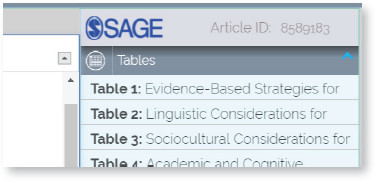
All tables in the article are displayed in this panel. You can edit any table just like you would edit a table in a standard word processor.
a. Simple text edit: Add or delete or make formatting changes simply by editing the text
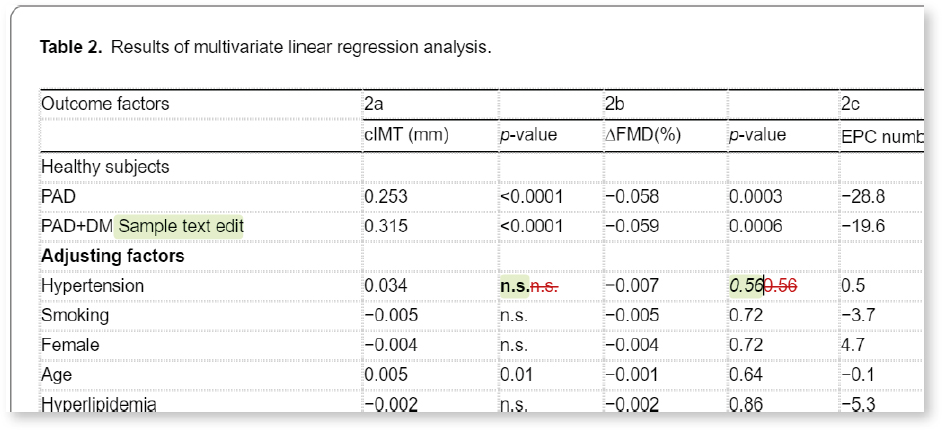
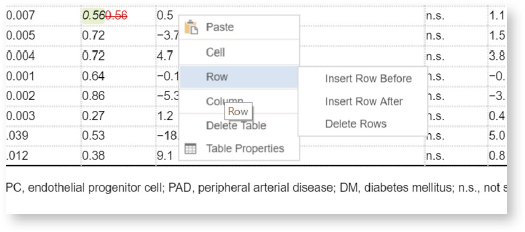
b. Adding/Deleting Rows / Columns : Place the cursor where the row / column needs to be added, right click and you will have the options to Add / Delete rows or columns easily.
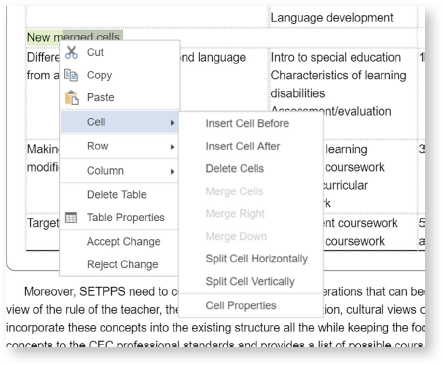
c. Merging cells: Select multiple cells in the table, right click and merge them or delete individual cells in the table.

The tables in the editing tab are provided for you to edit the table content, and do not appear exactly as they will in the final article PDF. The PDF tab displays the article layout – small edits to table content should not affect this, but major revisions could alter it. If you want to replace or add new tables, please provide them in a Word document as an attachment, and leave a COMMENT describing the change required.
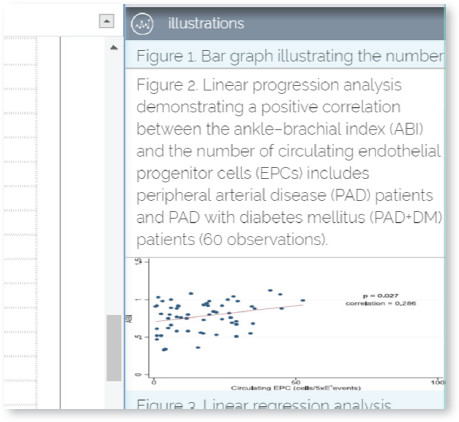
All Figures in the article are displayed on this panel in a thumbnail view. Clicking the thumbnail will take you directly to the Figure in the article. The captions can be edited using the text editing tools. If you need to make changes to the artwork, please add a comment. If you need to replace a Figure, please upload the new artwork as an attachment.
A low-resolution image is hosted in the edit tab. The actual quality of the figure can be checked in the PDF file available in the PDF tab.