

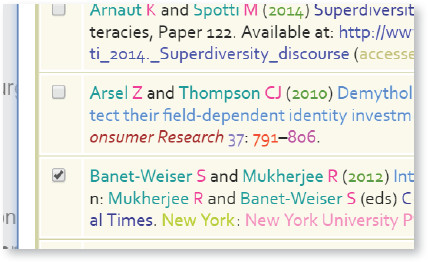
This panel displays a list of all the references, just click any reference and it will take you to the actual reference in the text. Each separate element of the reference is colour-coded (e.g., author names are green, article titles are blue); you will need to click on each of the elements individually to make changes to them.

a. Adding New Reference: If you wish to add a new reference, please click either the ( ) icon in the Tool bar or (
  ) in the Reference navigation panel and it will pop-up the Reference window.

Follow the below steps to add new references:
• All the references in the article are listed in the Reference window.
• Choose whether the new references will be added “Before” or “After” an existing reference. To make the selection choose either 
• Select the Reference before / after which the new reference should be added and press “OK”.
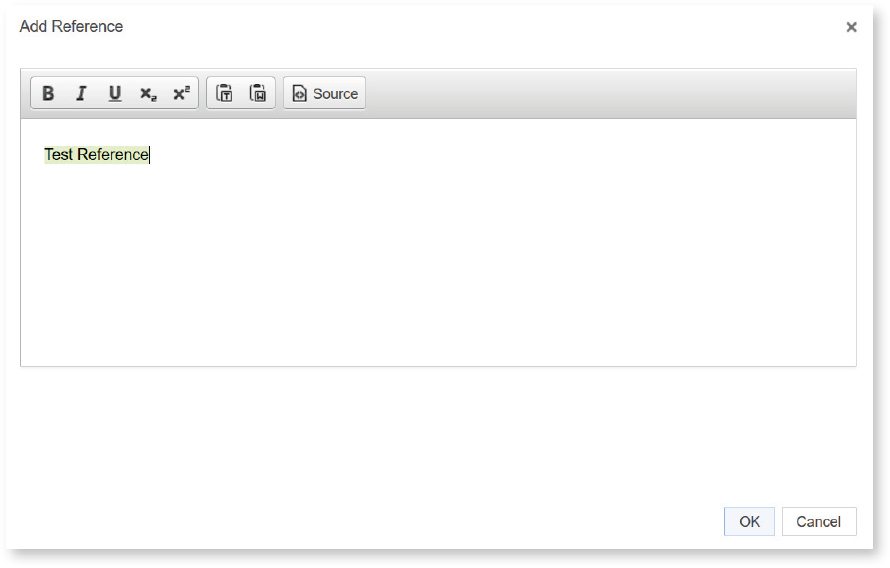
d. Another window opens where the new references could be keyed in or copied and pasted from another source. Once done click “OK” and the new reference will be added Before or After the selected reference.

If you wish to entirely replace the entire reference list with a new version, please attach the new references as a separate Word document and add a “COMMENT” to explain the reason for changing the whole references.
b. CITATION: You can add a reference citation anywhere in the article. Just place the cursor at the point where you need to add the reference citation and click either the ( ) icon in the Tool bar or (
 ) in the Reference navigation panel. A new pop-up window opens up listing all the references in the article, select the reference from the list to add that citation.
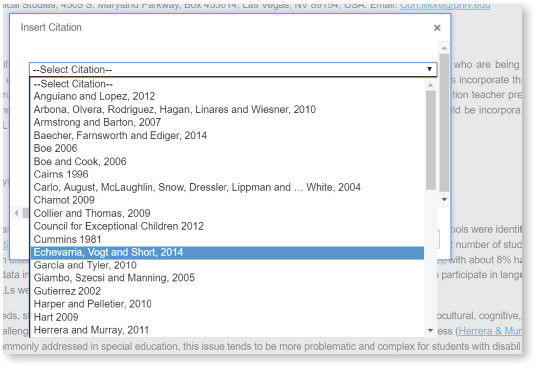
The citation dropdown only list references that already exist within the article. If you have added a new Reference, the new citation has to be added manually.